



Better Together: Dynamics 365 CRM & SAP — Part 5

In my previous post, we took a tour though Dynamics 365 Customer Service and highlighted some of the key features it offers to companies that want to level up their customer service experiences. Today, we’ll turn our attention to the field and have a look at Dynamics 365 Field Service.
Dynamics 365 Field Service: The Basics
D365 Field Service is an industry-leading field service management solution which companies can use to empower frontline workers as they provide onsite service at customer locations. With D365 Field Service, customers have all the tools they need to manage frontline workers, schedule and execute work orders, and monitor customer assets and equipment.
Unlike other field service solutions that are laser-focused on specific industries, D365 Field Service is flexible enough to be adapted to work in a variety of industries — including ones that you wouldn’t think of such as healthcare. Here, basic concepts like work orders, assets, and inspections can be adapted to fit most any business case.
Work Order Management
In D365 Field Service, work orders are managed through a centralized system that enables organizations to schedule, dispatch, and track field service activities. The system allows for detailed work order creation — collecting customer information, required products/materials, and services/tasks (see Figure 1).

Figure 1: Creating Work Orders in D365 Field Service
D365 Field Service is quite flexible in terms of how work orders are created. Depending on your organization’s needs, work orders may be created:
- Manually using the standard D365 web/mobile interface.
- Automatically via maintenance jobs that schedule monthly maintenance activities according to service agreements.
- Dynamically via an Outlook email message using the D365 Field Service add-in.
- Automatically via an interface from upstream ERP or field service systems.
Resource Management
Frontline workers (both internal and external), crews, and equipment are managed in D365 as bookable resources. In addition to basic properties (e.g., name, contact information, etc.), bookable resource records are also used to track:
- Work location(s)
- Work schedules
- Resource skills / certifications
Collectively, these details are used to intelligently schedule resources based on availability, credentials, etc.

Figure 2: Managing Bookable Resources
Asset Management
As work orders are completed, installed products can be converted into customer assets (equipment) that can be tracked over time. Careful management of customer assets unlocks some powerful features including:
- Tracking of repair and service history
- Inspections and inspection reports
- Routine maintenance planning
- Warranty management

Figure 3: Managing a Customer Asset Hierarchy
Advanced Features
In this section, we’ll highlight some of the more advanced features of D365 Field Service. Here, once again we will see how Microsoft builds on the foundations of Power Platform and Azure to modernize and re-imagine the customer service experience for both agents and customers.
Copilot in Dynamics 365 Field Service
As part of Microsoft’s Copilot strategy, the D365 Field Service UX was recently renovated to streamline work order processing activities between the front and back office. Check out the video below to see how Copilot helps with routing, scheduling, and even makes it possible to create work orders from customer escalation emails.
Schedule Board
As work orders are created, D365 Field Service makes it easy to schedule service using the Schedule Board shown in Figure 4 below. Here, the system carefully examines work order requirements to identify the resources required, when/where the resources will be needed, and so forth. For example, if a work order requires someone certified for hot work, only bookable resources with this certification would be selected as potential candidates (see Figure 2).

Figure 4: Schedule Board in D365 Field Service
Where possible, D365 Field Service uses AI technology to level out workloads and optimize schedules based on resource availability, travel routes, and so forth.
Inspections
One of the more powerful features of D365 Field Service is its flexible inspections module. As you can see in Figure 5, Microsoft provides a drag-and-drop designer tool that you can use to build dynamic inspection forms complete with business rules (e.g., “if this, then that”) that come together like questionnaires.

Figure 5: Building Dynamic Inspection Forms
This flexibility makes it easy to define very precise inspection forms that are tailored to particular work order types, etc. These forms can capture both quantitative and qualitative inspection points to support advanced reporting requirements.
Mobile App
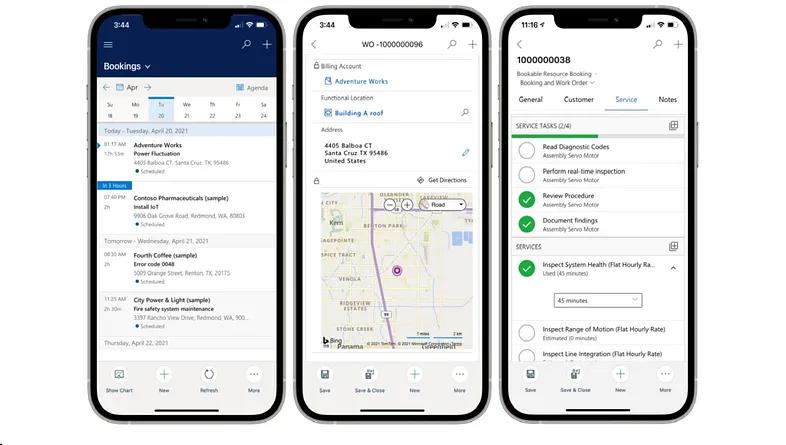
Although the D365 Field Service web interface is fully responsive (meaning that it works equally well with desktop, tablet, and smart phone devices), it also includes access to a native mobile app as shown in Figure 6 below. This app seamlessly integrates Dynamics 365 Field Service with technicians’ Outlook calendar to provide a one-stop shop for managing schedules/tasks. Some key benefits of the mobile app include:
- Support for offline access
- Geofencing
- Integration with the device camera
- Maps integration including driving directions
- Barcode scanning

Field Service Portal
D365 Field Service also provides a self-service portal experience that can be used to provide customers with the flexibility to schedule and manage service appointments. This portal experience builds on top of Power Pages — Microsoft’s low-code portal service. Figure 7 below shows what the default portal experience looks like. Of course, this is just a starting point: you can adjust the theming to match your customer branding or expand the scope of the portal to support the creation of service requests, process payments, and so forth.

Figure 7: Service Portal Customer Experience
Remote Assist
Remote Assist in Dynamics 365 Field Service provides frontline workers with a “phone a friend” option to get real-time help with work orders. Figure 8 shows how this works. Here, a frontline worker working on a work order is stuck and reaches out to a subject matter expert (SME) using Remote Assist. This opens up a Teams video call which the technician can use to show the SME what they’re seeing on the ground. Then, the SME can use telestration controls to guide the technician through the installation/repair process step-by-step.

Figure 8: Dynamics 365 Remote Assist
From a knowledge management perspective, one of the great things about Remote Assist is that it captures transcripts that are logged against the work order. Over time, this information can be used to build up a knowledge base that proactively guides technicians in executing work orders.
Connected Field Service & IoT
With Connected 365 Field Service, we can set up IoT workflows that monitor the operation of customer assets out in the field. This data stream unlocks preventative maintenance and remote monitoring process flows. For customers supporting broad territories, these capabilities can eliminate truck rolls and really save a lot of money.

Figure 9: Connected Field Service Concept
Within D365 Field Service, you can configure alerts that monitor IoT sensor readings and trigger workflows whenever certain thresholds are met. You can also mine that data to perform trending analysis, anomaly detection, etc. in Power BI (see Figure 10).

Figure 10: IoT Alerts in D365 Field Service
Integrating with SAP (and Beyond)
The flexibility of Dynamics 365 Field Service makes it easy for customers to integrate it into pre-existing field service processes in SAP. Once we figure out the basic master data integration strategy between SAP and Dynamics 365 (see this blog post for details), the primary integration challenge is figuring out which system(s) will own the work orders. Logically, this can work several different ways:
- Dynamics 365 as the System of Record: In this scenario, work orders are created directly in D365 via the web/mobile app, Copilot, or any of the options described in this post. Here, the work is scheduled and performed using Dynamics 365 and then the work order is replicated back to SAP upon completion to settle up costs and update resources.
- SAP as the System of Record: In this scenario, the work orders are created/owned by SAP, but synced to Dynamics 365 for streamlined execution. Here, customers can take advantage of the advanced scheduling, dispatch, and mobility capabilities of Dynamics 365 to improve the user experience for frontline workers. Put a different way, this approach effectively uses D365 Field Service to extend the reach of backend ECC or S/4 systems.
- Shared Ownership: In this scenario, different types of work orders are managed in separate systems. For example, a utilities company might distinguish between planned and unplanned work orders. In this case, the agility of D365 Field Service might make a ton of sense for unplanned work orders (e.g., as a result of weather events) while the planned orders are being generated/managed in SAP ERP.
Much like we observed with D365 Customer Service in our last blog, work orders in D365 map very cleanly with service orders in SAP Customer Service (and also Service Notifications). We can also map customer assets and functional locations in D365 to equipment and functional location records in SAP ERP, so it’s a clean one-to-one map in most cases.
Final Thoughts
We hope that you’ve enjoyed this whirlwind tour of D365 Field Service, and that it showed you how complementary it is to SAP ERP. This is another case where D365’s flexibility makes it easy to modernize your field service experience without necessarily disrupting years’ worth of investments in SAP ERP— especially as it relates to settling up costs.
In my next blog post, we’ll wrap up our series on Dynamics 365 CRM by looking at D365 Project Operations. Much like D365 Customer Service and D365 Field Service, D365 Project Operations enables SAP customers to coordinate and execute project-based service activities in a modern, user-friendly interface.