



Better Together: Dynamics 365 & SAP — Part 3

In my previous blog post, we provided an overview of the Dynamics 365 platform as a whole. Today, we’re going to zoom in on the D365 Sales module and show how this module can work side-by-side with the SAP Sales and Distribution (SD) module to streamline the end-to-end sales process.
Dynamics 365 Sales: The Basics
By default, D365 Sales provides the core features you would expect to find in any basic CRM system. From customer and contact management to common sales processes such as “lead-to-opportunity” and “orders-to-cash”, all of the basic building blocks are in place to manage the sales process end-to-end.
In terms of user experience (UX), D365 Sales is designed to provide sales team members with all relevant information at their fingertips. The journey starts with dashboards like the one shown in Figure 1. Here, sales team members are presented with an overview of the sales pipeline, open opportunities, and so forth.

Figure 1: Dynamics 365 Sales Dashboard
Sales team members also have the option of working off of views (or worklists) like the one shown in Figure 2 below. You can think of views as canned queries that users can use to search/filter through records. For example, as you can see in Figure 2, there are quite a few views provided to allow users to search for leads. By default, the system would just show a user their open personal leads, but they can always zoom out by selecting other views such as All Leads. If desired, users can create their own custom views that sort/filter the data as needed.

Figure 2: Managing Worklists in Dynamics 365 Sales
From the worklist views, users can drill in to create or edit records individually. Whether you’re editing a lead, a quote, or a sales order, the form-based editor experience is largely the same. As you can see in Figure 3 below, some common features include:
- A top-level toolbar where you can perform various actions such as assigning records to yourself or others, qualifying leads, and confirming quotes.
- Underneath the toolbar, you have a header area which provides status-level details. This section also normally includes a top-level business process (i.e., the little roadmap control with the red bar) which allows the user to visualize where they are in the process status-wise, like New, Qualify, Develop, Propose, or Close.
- Relevant details about the selected record at hand (e.g., a lead, a customer account, a sales order, etc.) are captured in forms and tabs. Sub-grids can also be used to show related items like stakeholders or competitors.
- A timeline which tracks activities and other events related to the selected record.

Figure 3: Managing a Lead in Dynamics 365 Sales
Advanced Features
One of the critical success factors for any CRM implementation project is user adoption. After all, if the sales team can’t or won’t use the CRM system, then you’re not going to get very much value out of it. Recognizing this, Microsoft has invested a considerable amount of time and resources to transform D365 Sales from a mere system of record into a true decision support system that monitors the sales pipeline and proactively delivers insights into the hands of the right sales team member(s) at the right time.
Although we can’t do justice to all of these types of features in a blog post like this, we’ve curated a list of features to highlight some of the key capabilities below.
Guided Selling: Sales Accelerator & the Sales Assistant
These features provide sales team members with insights about various sales signals, recommendations on follow-on sales activities, and so forth. Microsoft strikes a nice balance here by allowing you to configure “sequences” of activities based on your company’s sales playbook. From there, the system uses AI/ML-driven insights to surface recommendations, offer predictive scores, and so forth. As you can see in Figure 4, these insights/recommendations are presented as cards which contain actions to allow sales team members to quickly respond to notifications.

Figure 4: Working with the Sales Accelerator Tool
Sales Forecasting & Goal Management
These features allow you to configure sales goals and forecast potential bookings at different levels of granularity. Once again, Microsoft uses ML to analyze opportunities and offer predictions on sales. As you can see in Figure 5, you can analyze the forecast from several different angles and even review historical trends.

Figure 5: Working with Sales Forecasts
Relationship Intelligence
With relationship intelligence, you can analyze the health of customer relationships, mine customer/contact connections, and identify potential risks. The health scores are automatically calculated behind the scenes based on the results of sales activities like emails, meetings, phone calls, and tasks. Sales team members can visualize the relationship data in embedded analytics screens like the one shown in Figure 6 below.

Figure 6: Monitoring Relationship Health in Dynamics 365 Sales
Conversational Intelligence
With conversation intelligence, sales team members can make calls or chat with customers from directly within D365 Sales using Microsoft Teams. As you can see in Figure 7, there are multiple launch points within D365 to kick off these calls or chats.

Figure 7: Microsoft Teams Integration for Calls and Chat Sessions
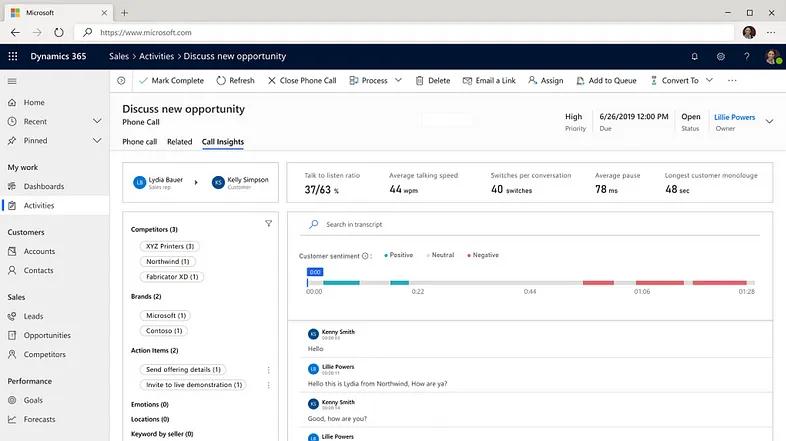
The “intelligence” part of conversational intelligence has to do with the way that Microsoft is able to analyze these conversations and use text/sentiment analysis to draw useful insights from them. You can see these insights on display in Figure 8 below on the Call Insights tab. Here, you can see how the system analyzed a phone call and captured quite a bit of useful information:
- Topic points in the discussion
- KPIs such as talk-to-listen ratio, talking speed, etc.
- Customer sentiment analysis
- A detailed and searchable call transcript

Figure 8: Analyzing Call Insights for a Phone Call Activity
It’s also worth mentioning that similar capabilities can be leveraged with Microsoft Copilot which is also deeply integrated with Outlook, Teams, and Dynamics 365.
Embedded Sales Tools
Since Microsoft owns LinkedIn, D365 offers excellent integration with the LinkedIn Sales Navigator. There’s also great support for integration with 3rd-party tools such as ZoomInfo and HubSpot. Figure 9 illustrates how sales team members can access the LinkedIn Sales Navigator tool within D365 Sales. Under the Relationship Assistant panel on the right, the Sales Navigator will offer various insights that can be added to the timeline or processed directly within LinkedIn.

Figure 9: Working with the LinkedIn Sales Navigator Tool
Integration with Other Parts of Dynamics 365
As you would expect, D365 Sales plays very nicely with other modules of D365. From a sales perspective, there are several highly complementary modules worth exploring:
- Dynamics 365 Customer Insights
This industry leading marketing automation platform provides many advanced marketing features that can be used to build a 360° view of a customer, create personalized journeys, and track performance. - Dynamics 365 Commerce
This retail platform can extend the reach of D365 sales with best-in-class e-commerce capabilities such as omnichannel engagement, streamlined digital commerce, and so forth. - Dynamics 365 Customer Voice
This customer experience platform can be used to coordinate customer outreach and gather feedback.
Integrating with SAP
Now that you have a feel for what D365 Sales is all about, let’s turn our attention to integration with SAP ERP (ECC or S/4 HANA). With so many flexible integration options available (see my previous post for details), there are numerous ways to deeply integrate D365 with SAP.
Aligning Organizational Structures
Although the organizational structure in SAP’s sales and distribution (SD) module is more complex than that of Dynamics 365 Sales, the higher-level organizational elements map pretty nicely between the two systems. For example, a company code in SAP generally maps to an organizational unit in D365.
Once you have a feel for how you’d like to align the structures, you can fill in the gaps in D365 with a few small enhancements. Here, for instance, we might add a couple of custom fields to replicate a pre-existing sales organization hierarchy in SAP SD. This is a minor configuration exercise that’s easy to perform.
Master Data Synchronization
For master data synchronization, we have many options to choose from. Here, the main issue we have to address is data ownership. In other words, will SAP be the system of record for things like customers or materials (products in D365 parlance), or will ownership shift to D365? In some cases, you might even have a need for shared data ownership between the two systems.
Regardless of your situation, the good news is that we have plenty of tools to leverage to make this synchronization work for your business:
- Bulk Data Transfer
SAP to D365: Microsoft has several tools that we can leverage to extract data out of SAP. For simple bulk transfers, we can leverage the built-in Power Query service. For more advanced transfers, we can leverage the Azure Data Factory service.
D365 to SAP: Azure Data Factory or most any of SAP’s bulk data tools (e.g., SAP Data Services, the SAP Migration Cockpit, or even legacy tools like LSMW) can replicate data into SAP. - Delta Synchronization
SAP to D365: For this exercise, we normally turn on Change Pointers in SAP and use ALE/IDoc technology to send updates to D365 using Azure Logic Apps.
better-together-dynamics-365-and-sap-part-3: This flow is sort of the opposite of the SAP flow. Here, we can listen for changes to master data objects in Dataverse and then route the changes over to SAP via ALE/IDocs or web service calls.
Here at Bowdark, we have an accelerator toolkit that we use to expedite this integration process. As you might expect, the devil is mostly in the mapping details, but most customers are surprised to learn that data can usually be integrated in a matter of weeks, not months.
From a modeling perspective, another challenge with master data synchronization is dealing with the fact that SAP has quite a bit more dimensions to their master data objects. Although you could enhance D365 to carry over all that data, in most cases we would argue that this is not necessary. As long as the data objects can be linked together, we can always fetch relevant data from SAP in real time — more on this in a moment.
Transactional Data Synchronization
Once we get the organizational structure and master data objects aligned, transactional data synchronization is usually very straightforward. Since the SAP SD module provides many standard APIs out of the box, we can easily replicate transactional documents such as quotes, sales orders, and invoices back-and-forth between D365 Sales and SAP.
Once we get the basic application-to-application (A2A) integration mechanics worked out, there are a couple of issues that we need to work out:
- We need to figure out where the sales process ends in D365 and where the handoff(s) to SAP need to take place. For example, does the process stop at the point that a sales team member creates a sales order in D365? And, if so, do we need to synchronize fulfillment and/or invoice details from SAP back to D365 Sales?
- If sales orders are being entered in D365, then we probably need to make some real-time calls into SAP to perform an availability check on products, calculate the sales price, estimate delivery dates, and so forth.
To smooth out the rough edges for real-time lookups, we have developed a middleware component called Bowdark Fuse which allows us to directly integrate SAP functionality as “virtual tables” in Dataverse. With Fuse, we can easily make real-time calls to SAP from within D365. At runtime, the calls are routed to SAP using end-to-end principal propagation — meaning that the SAP calls are performed on behalf of the sales team member logged onto D365 Sales (and not some generic system user account). To the end user, the entire experience is seamless — they never have to leave D365.
Final Thoughts
We hope that you’ve enjoyed our whirlwind tour of D365 Sales. As powerful as D365 Sales is on its own, it’s even more powerful when deeply integrated with SAP ERP on the backend. This combined approach offers sales teams the best of both worlds in the sense that it extends the reach of core SAP while meeting sales team members where they live on a daily basis.
But that’s just the tip of the iceberg. When you think about it, many mature SAP customers may have 20+ years’ worth of historical sales data just sitting around collecting dust in SAP. If we bring that data into D365 Sales and related modules, we can put that data to work to analyze customer relationships, identify gaps in the sales process, and so much more.
In my next blog post, we’ll take a similar tour through another key CRM module — D365 Customer Service. Here, we’ll see how D365 can level up customer service processes while complementing core processes in the Customer Service (CS) and Sales and Distribution (SD) modules of SAP.