



Real-Time Alerts with Data Activator

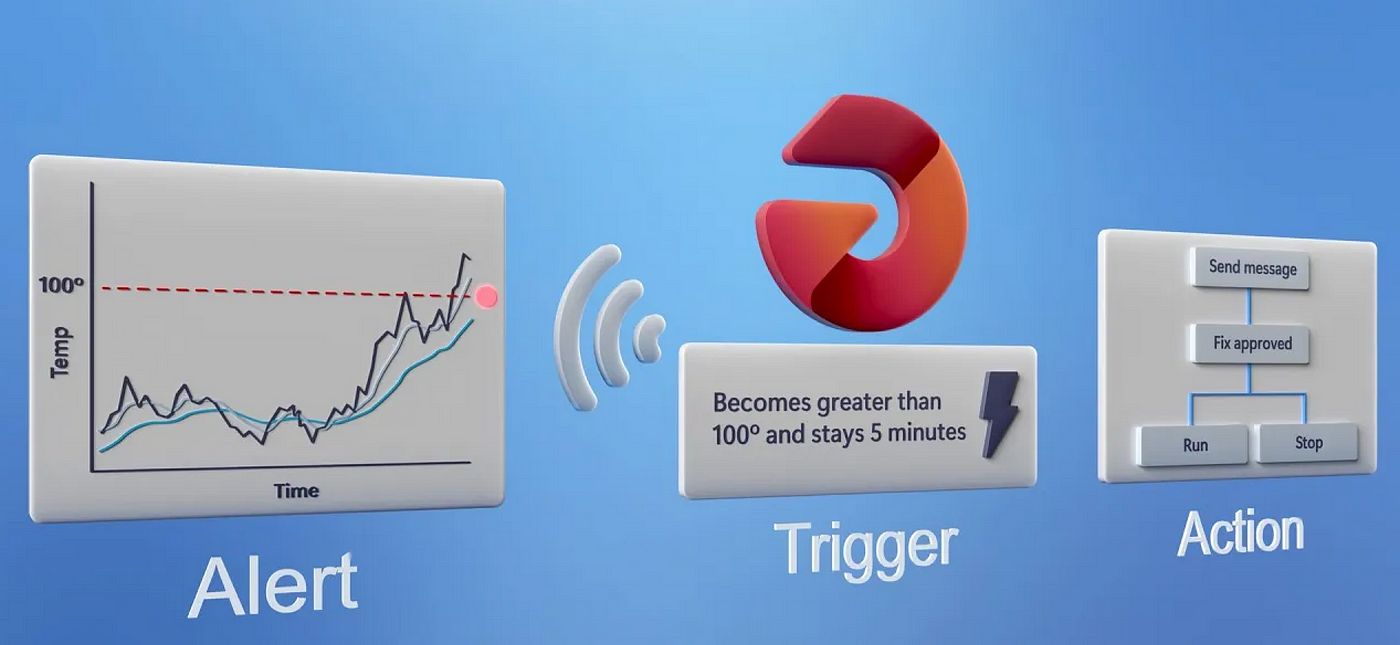
Here at Bowdark, we’re constantly looking for ways to use modern technology innovations to simplify and streamline business processes. One recent addition to our tool chest is Microsoft Data Activator, a low-code tool that can be used to trigger actions whenever patterns or conditions are detected in data streams.
In this blog, we’ll quickly introduce Data Activator and demonstrate how it unlocks some very compelling workflow scenarios.
What is Data Activator?
Data Activator is a relatively new service that was introduced as part of Microsoft’s new Fabric data platform. As you can see in Figure 1, Data Activator complements other key Fabric services such as Power BI and OneLake.

Figure 1: Data Activator as Part of Microsoft Fabric
Functionally, the Microsoft documentation describes Data Activator as a tool that “allows customers to build a digital nervous system that acts across all their data, at scale and in a timely manner”. Put a different way, Data Activator is a tool that you can use to carefully (and independently) monitor the goings-on within your organization.
Logically, Data Activator is made up of two main parts:
- No-Code Designer: At design time, analysts work within a no-code designer experience to describe business conditions that should be monitored within the company. For example, a manufacturing company might want to keep an eye on any production order that’s been on hold for more than 30 minutes.
- Runtime Engine: At runtime, if any of these business conditions are met, Data Activator will launch an action. These actions can be as simple as sending an alert message via Outlook or Teams. For more advanced scenarios, Data Activator can kick off Power Automate workflows.
Figure 2 below illustrates how these concepts come together in Data Activator.

Figure 2: Data Activator Overview
Triggering Alerts with Data Activator
To really understand how Data Activator works, it’s helpful to see an example. To keep things simple, we’ll start with a basic Power BI report that’s being used to perform some procurement analysis activities.
Configuring an Alert
If we open up this report in Microsoft Fabric and select a visual, you can see that we have a new flyout menu option called Set alert (see Figure 3 below).

Figure 3: Configuring Alerts in Data Activator - Part 1
Selecting the Set alert menu option opens up the Set an alert panel shown in Figure 4. Here, we can use the form to define a condition for our alert. In the example, we’re monitoring the discount percentage measure by tier and triggering an alert if that percentage becomes greater than 4.66%. Depending on the report/measure you’re targeting, you may have different options for defining your business rule. This is especially true for streaming analytics where we’re working with time series data.

Figure 4: Configuring Alerts in Data Activator - Part 2
Whenever we hit the Create alert button shown in Figure 4 above, Fabric will store the rules in the form of a reflex object as shown in Figure 5 below. Reflex objects are containers for alerts and are defined as follows:
- Object: The object refers to the object that we’re monitoring. In our example above, the object is the tier that’s being evaluated in the selected Power BI visual. However, depending on how you define your alert, the type/shape of the object can change quite a bit.
- Properties: The properties represent the properties that we’re monitoring within the selected object (e.g., discount percentage).
- Triggers: Triggers store our business rules and link our conditional logic with an action (e.g., sending an email or a Teams message).

Figure 5: Editing Reflex Objects in Microsoft Fabric
As you can see in Figure 5, Fabric will create a Send email action by default. Within that drop-down list, you can change this configuration to route the alert to Teams or, if configured, a custom action (see Figure 6).

Figure 6: Changing the Target Action for a Reflex Object
Figure 7 shows the setup wizard for creating custom actions. This wizard captures some of the basic details needed to kick off a Power Automate workflow process. Once this handoff is in place, you can go into your Power Automate cloud flow and pretty much do anything. For example, in Figure 7, the placeholder text illustrates how you might use Power Automate to send the alert via an SMS text message. Of course, that’s just the tip of the iceberg. With over 1,500 connectors available out of the box, we can build some very elaborate workflows here.

Figure 7: Defining Custom Actions in a Reflex Object
Runtime Behavior
Once our alert/reflex object is fully configured, we can use the reflex editor to run through a quick test or two to verify things are working. Then, we can press the Start button to fire up a listener behind the scenes. Here, it’s important to note that the alerts will not necessarily fire off immediately.
Right now, Data Activator can only trigger actions every 5 minutes at the fastest. This will likely change over time, but the point for now is to note that while Data Activator will actively monitor data streams to identify trigger conditions, there will naturally be some latency between the time a condition is met, and an action is triggered.
Looking at the Big Picture
At the time of this writing, Data Activator is still in preview, so its capabilities are evolving. However, even in its current state, Data Activator introduces a powerful new tool into the data/analytics arsenal — one that enables us to create proactive processes.
Creating Decision Support Systems
To put this into context, consider the simple Power BI alert demo we evaluated here. While Power BI does a great job of helping users quickly analyze data, it requires that a human being launch the report, filter/scan through the data, and draw insights from the data.
With Data Activator, we can automate these steps and put the system in charge of keeping its finger on the pulse of the data. Then, with Power Automate, we can take that automation to the next level:
- Rather than just sending basic alerts, we can use intelligent routing to deliver insights into the hands of the right people at the right time.
- In selected cases, we might be able to fully automate the escalation or remediation steps to let the system respond to the issue(s) noted.
Simplifying the Enterprise Architecture
From an architectural perspective, we’ve had these kinds of alerting capabilities for a long time. However, before, cost was a major factor since these types of solutions were difficult to build. In the past, these types of solutions usually came together in one of two ways:
- In-App Extensions: If the data/events in question were fully owned by a single system (e.g., an ERP system like SAP), then specialists might use proprietary technology within those systems to trigger the alerts as part of an in-app extension. For example, if the data from our Procurement Analysis dashboard came from SAP, we could write some custom ABAP to detect trigger conditions and either emit an event or send an email.
- Event Crawlers: In this scenario, custom jobs/crawlers were built to scan through data in a data warehouse/data lake and look for trigger conditions. Although this approach decoupled the alerts from the host systems (and their proprietary technology), it still required pro-code development efforts to build and manage the crawlers.
Data Activator replaces all that with a low-code environment that takes advantage of the data centrality in OneLake to implement these types of alerting solutions at scale.
Closing Thoughts
Although it’s early days, Data Activator is an exciting new tool that builds on Fabric and OneLake to reimagine data monitoring solutions. As always, we welcome feedback and would love to hear your thoughts on Data Activator and ways that you are thinking about using it within your business.