



Azure Integration Services - A Deep Dive Working with Logic Apps

In this blog post, we’ll demonstrate the benefits and ease of use of using Logic Apps to develop modern SAP integration solutions. Specifically, we’ll take a deep dive walking you through how to create a Logic App that consumes data from SAP and populates tables in Microsoft Dataverse.
This blog post will approach this from a Logic Apps perspective, meaning that we won’t be examining any of the OData services that were created and are being consumed by the Logic app.
Last thing before we get started, a basic understanding of Microsoft Azure, Resource Groups, and an understanding of OData are prerequisite to what is covered in this blog post. Please refer to Blog Posts 1 & 2 in this series if a refresher is needed.
To begin our deep dive into working with Logic Apps, first we will need to navigate to the Resource Group that you want your app contained in, and then press the create button at the top of the page. Side Note: You can also create a Resource Group if you do not have one already created.

From there, you will be taken to the Azure Marketplace where you can select what you would like to add to the Resource Group. This is where you will select the Create Logic App tile and fill in the required information such as the app name and the region the app should be hosted in. After we have filled those in, we will press “Review + create” shown in the picture below to create our blank Logic App.

Every Logic App needs a trigger to start the flow and for this example, we will be using a simple recurrence trigger. By typing recurrence into the search bar on the side panel, we can see the recurrence trigger available for selection. Enter in your desired schedule whether that be daily, weekly etc.

Now that we have our trigger, we will then create an action that sends a request out to SAP via HTTP with Azure AD to fetch a CSRF token from SAP as shown below.


We will store this CSRF token in a variable by initializing a token variable and setting its value equal to what we fetched from SAP.

We will then use this variable to make another call to SAP for the specific entity set data we want to create records for in Dataverse.

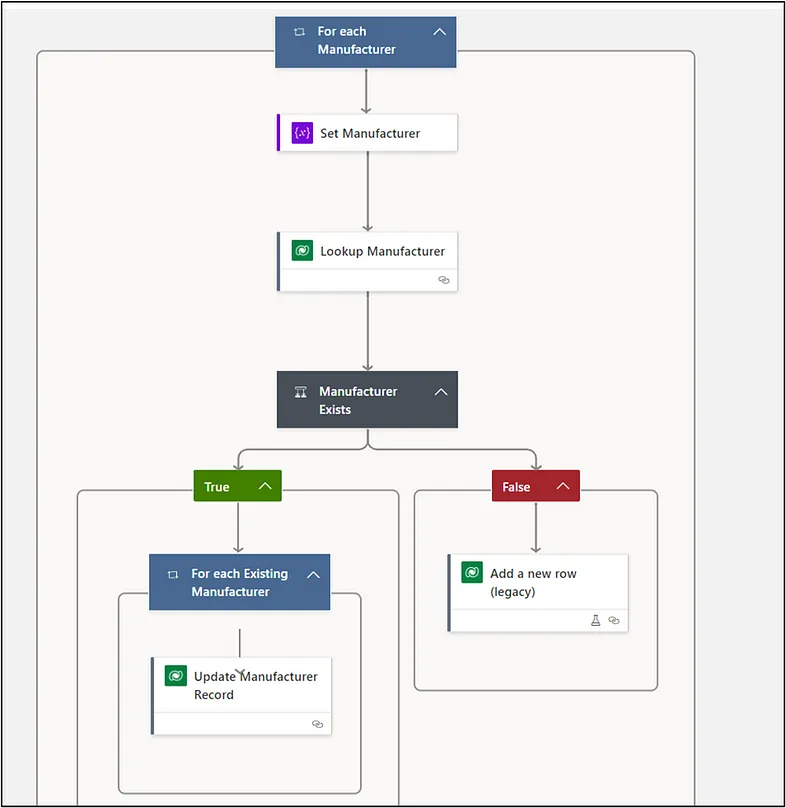
After that, we will be returned with a JSON array consisting of all the results from our call to SAP. Our next step is to create an action “For Each” loop, which is done by typing “For Each” into the search bar on the side panel (if this does not show up, it is a control action).

We do the lookup by first concatenating the key field for lookup to the key field value that has come from SAP as the filter query. In this case, it is a GUID value and would concatenate as such:

In the next step, we will see what was returned. If the length of what was returned is 0, we know there was no match and will create a new Dataverse record. Conversely if the record returns of length 1, we know there was a match and to only update the record.

For each record returned by our loop, we will look up whether it already exists in Dataverse. As this program runs nightly, we don’t want duplicated records appearing in our table. We avoid this by creating a condition control for the ‘Manufacturer Exists’ action that will update Dataverse when the records are found or create new records when they do not exist in Dataverse yet.
When we are creating new records in Dataverse, we will use the Add a new row (legacy) action and assign the variables we want stored to the table. Remember, the variables would be stored in the variable name that was set earlier in the flow.
For reference, the expression syntax for the name variable below would be as such:


Now that your flow is built, it is time to check that it is working properly. Make sure your flow is saved and then click the run trigger button from the top menu. Friendly reminder that it doesn’t hurt to save often throughout creation of your flow as well.

You will be able to see your flow running inline or via the Overview blade on the left side panel, and successful results should look something like the below. The green check marks indicate successes and any issues that arise will be denoted on the step that is failing with some sort of error detail to help you get your flow working as intended from start to finish.

Once we have gotten here, we have successfully created a logic app that consumes an OData service from SAP. We have looped through this data and added new records to Dataverse.
Closing Thoughts
I hope this post provided some insight on how easy it can be to load your SAP data into Microsoft Dataverse as you begin to explore these new solutions. In our next post, we will conclude by sharing some of the key benefits and features that make Azure & Logic Apps the best little middleware for your business.